
Supported platform · Pinterest
Schedule Pinterest Pins with AI
SimplePost publishes image and video Pins to the board you choose, with a title, description, destination link and alt text. AI assistants are useful for writing search-friendly Pin titles and descriptions; SimplePost makes sure every Pin has a board and one piece of media before it is scheduled.
7-day free trial on every platform. No credit card required.
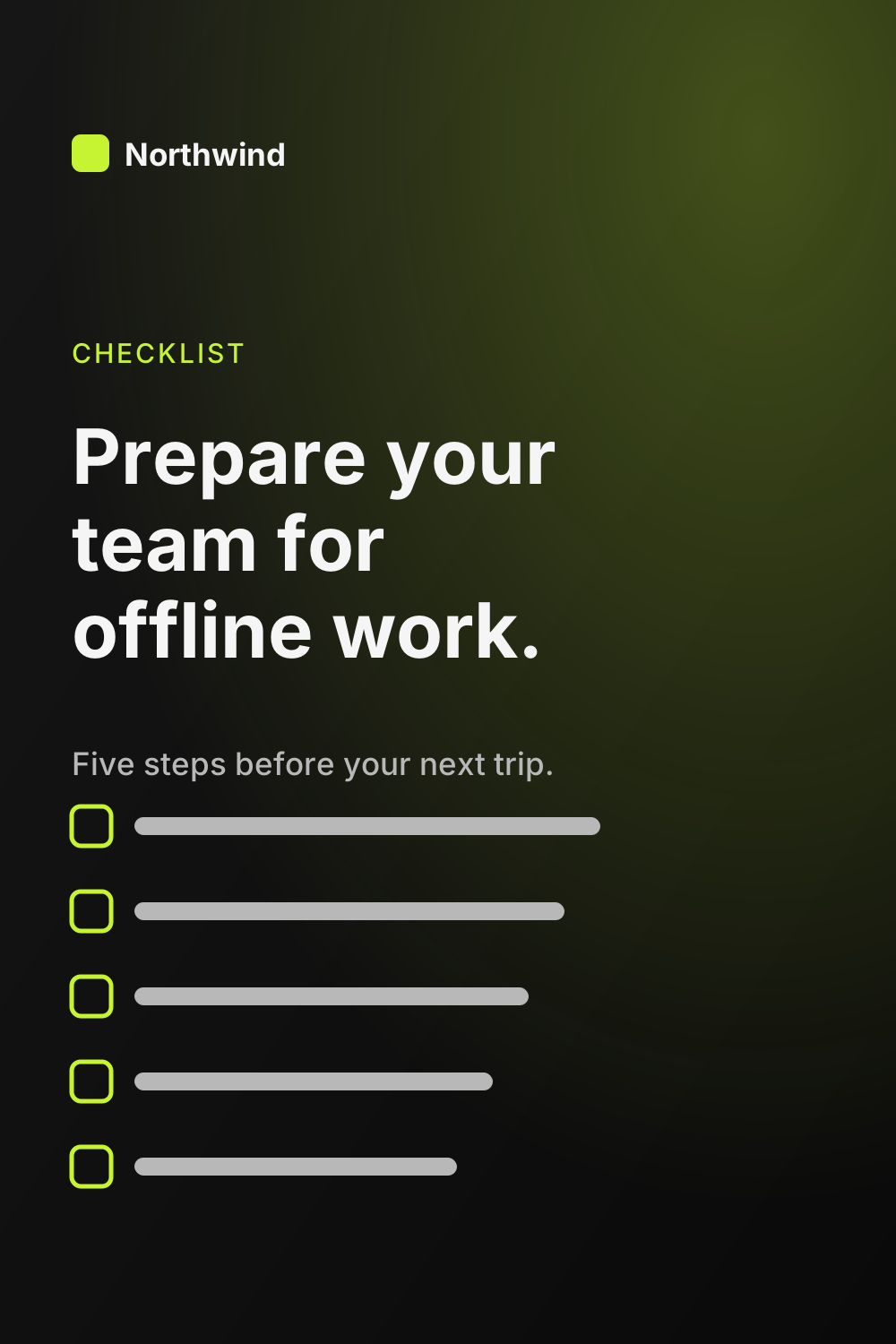
Offline work checklist for remote teams
A five-step checklist to prepare your team for working offline: download what you need, check sync settings and know how to review conflicts when you reconnect.
Northwind Studio
Quick answer
Can AI create and schedule Pinterest Pins?
Yes. Connect Pinterest in SimplePost, then ask ChatGPT, Claude or another MCP client to create a Pin with an image or video, title, description and link. A Pin also needs a board. The assistant cannot list boards itself, so give it the board ID or pick the board in the web app before scheduling.
- What you connect
- Your Pinterest account and its boards
- What you can publish
- One image or video Pin on a chosen board, with title and link
How it works
How SimplePost supports Pinterest
SimplePost connects to Pinterest with permission to read and write boards and Pins. In the web composer, your boards are listed for each Pinterest account so you can pick one; you can also enter a board ID manually.
Every Pin is a single image or video. For a video Pin, SimplePost uses the thumbnail you provide as the cover, or the first frame.
Supported content types
- Image Pin
- One JPEG or PNG image with title, description, link and alt text.
- Video Pin
- One video of 4 seconds to 15 minutes, with an optional cover image.
Before you connect
Pinterest account requirements and limits
SimplePost validates these rules when you schedule and again when the post becomes due.
Account requirements
- A Pinterest account authorized in SimplePost.
- A board for every Pin, selected in the post's Pinterest settings.
- One image or video for every Pin.
Limitations to know
- Multi-image carousel Pins and Idea Pins are not supported.
- The MCP tools do not list Pinterest boards, so an assistant needs a board ID from you or the Pin's board is chosen in the web app.
- Creating new boards or sections is done in Pinterest.
Text and media limits
| Media | Exactly 1 image or video |
|---|---|
| Title | 100 characters |
| Description | 800 characters |
| Alt text | 500 characters |
| Link | http or https URL up to 2,048 characters |
| Image | JPEG or PNG, up to 20 MB; ratios other than 2:3 get a warning |
| Video | Up to 2 GB, H.264 or HEVC, 4 to 900 seconds |
Pinterest settings in SimplePost
| Board | Required. Pick from your boards in the composer or enter the board ID. |
|---|---|
| Title and description | Title up to 100 characters; the post text is used as the description. |
| Destination link | The URL people visit when they click the Pin. |
| Alt text | Describe the image for people using screen readers. |
| Video cover | A thumbnail image for video Pins. |
With your assistant
How AI assistants publish to Pinterest
Pinterest is a search engine as much as a social network. Ask the assistant for a title that names what the Pin shows and a description that uses the words people search for.
Have the assistant save the Pin as a draft, then open it in the SimplePost web app to pick the board from the list, or give the board ID in your prompt if you know it.
A 2:3 portrait image (for example 1000 × 1500 px) avoids the aspect-ratio warning.
All assistants use the same SimplePost MCP server, so the accounts, validation and results are identical whichever one you use.
Example workflow
From idea to a scheduled Pinterest post
Connect Pinterest
Open Accounts → Connect account → Pinterest and approve access.Prepare a 2:3 image
Export the image as JPEG or PNG under 20 MB, ideally 1000 × 1500 px.Write the Pin with your assistant
Ask for a title, a description and alt text; give the destination link.Pick the board and schedule
Choose the board in the Pin's settings, preview it and schedule.
List my SimplePost accounts. Create a Pinterest Pin with the image at https://northwind.example/offline-checklist.png linking to https://northwind.example/offline-checklist. Write a title under 100 characters, a description under 500 characters for people searching for remote work tips, and alt text. Save it as a draft so I can pick the board in SimplePost.
Example prompt. Replace the example links and times with your own; a draft is not published until you schedule or publish it.
Scheduling and preview
How Pinterest scheduling and previews behave
- The preview shows the rounded Pin image with the title, the start of the description and your account.
- SimplePost blocks scheduling when the board or media is missing, rather than letting the Pin fail at publish time.
- Scheduled Pins can be edited, rescheduled or discarded until they start publishing.
Cross-posting
Cross-post from Pinterest to other networks
A Pin often links to content that you also announce elsewhere:
| A 2:3 checklist image with a search-focused title and link. | |
| The checklist as a 4:5 carousel with a caption. | |
| A Page post that links to the full checklist. |
Resources
Pinterest tools, guides and documentation
FAQ
Pinterest scheduling questions
Can I schedule Pinterest Pins with SimplePost?
Yes. Create an image or video Pin, choose a board, and schedule it. SimplePost publishes it to that board at the scheduled time.
Do I have to choose a board?
Yes. Pinterest requires a board for every Pin, and SimplePost will not schedule a Pin without one.
Can I post a carousel Pin?
No. SimplePost publishes Pins with exactly one image or video.
What image size should a Pin be?
A 2:3 portrait image such as 1000 × 1500 px. Other ratios are accepted with a warning. Images must be JPEG or PNG under 20 MB.
Other supported platforms
- Schedule LinkedIn posts with AI
- Schedule X (Twitter) posts with AI
- Schedule Instagram posts with AI
- Schedule Threads posts with AI
- Schedule Bluesky posts with AI
- Schedule Facebook Page posts with AI
- Schedule TikTok videos with AI
- Schedule YouTube uploads with AI
- Schedule Telegram posts with AI
- Compare all platforms
Schedule your first Pinterest post
7 days free · No credit card · 10 posts per platform during the trial